

If you spend most of your time coding in Jupyter notebooks, you’ve probably wished for an easier way to leverage AI coding right where you work, instead of having to copy and paste from ChatGPT or similar tools.
That’s exactly what Jupyter AI offers: a native extension that lets you write, debug, and generate code directly inside your notebook with support for most models like GPT and Claude.
In this quick guide, I’ll show you what it can do, how to set it up, and a few thoughts on when it’s actually worth using.
Give me 5 minutes, and I’ll get you up and running!
Quick overview
Jupyter AI is an open-source extension that adds LLM features on top of the standard Project Jupyter ecosystem
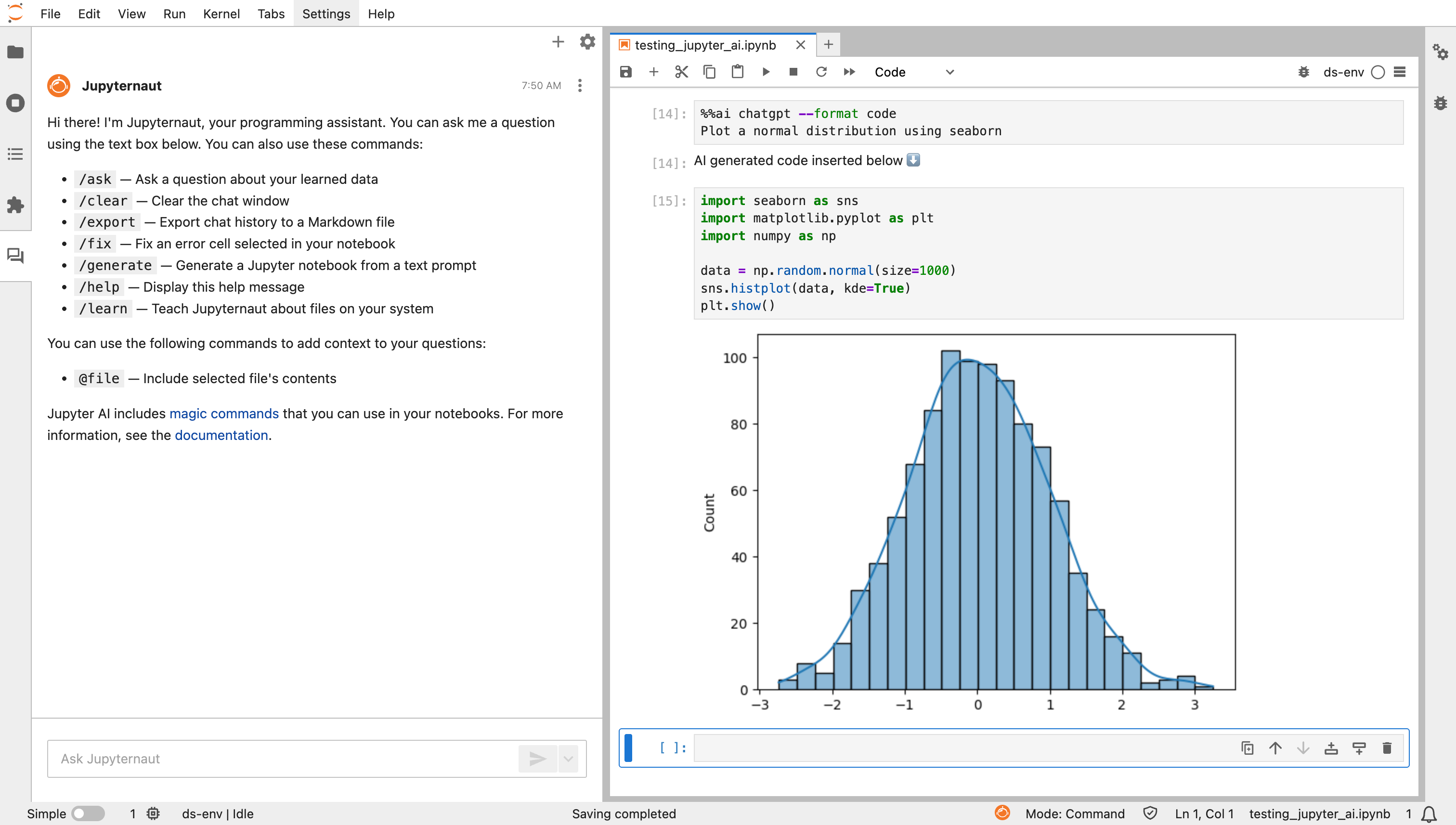
As of the time of writing this article, there are two ways to leverage these features:
The
%%ai“magic” command: This allows you to prompt LLMs from inside notebook cells to generate code, explain code, fix bugs, or answer questions.Jupyternaut: This is their built-in chat UI (only available via JupyterLab) that lets you treat the model as a conversational assistant. You can feed pieces of your notebook or data and ask for suggestions, code generation, summarization, etc.
Now let me show how to get started using it…
1. Installing Jupyter AI
There are two ways to install JupyterAI, depending on your preferences. Let me show you how to install them using the dependency manager pip.
Quick install (with full features)
pip install jupyter-ai[all]This command installs both the chat extension for JupyterLab and the magic-command support.
Magic-only install (if you don’t use JupyterLab or just want inline commands)
pip install jupyter-ai-magics[all]With this, you won’t get the chat UI, but you’ll still get the %%ai magic.
Requirements
Python 3.9 or higher. (PyPI)
If you want the JupyterLab UI, use JupyterLab 4.x. (Older JupyterLab 3 is supported in legacy mode but not recommended.)
Once the package is installed, you can launch JupyterLab (or Notebook/VS Code if you only installed magics). If you installed the full extension, you’ll see a small chat icon in the sidebar.
2. Connect Your Model
Before you start asking the LLM anything, you need to give it a model provider. Jupyter AI supports many: OpenAI, Anthropic, AI21, Hugging Face, Mistral, SageMaker, and more.
If you are using Jupyter Lab, you can set it via the user interface:
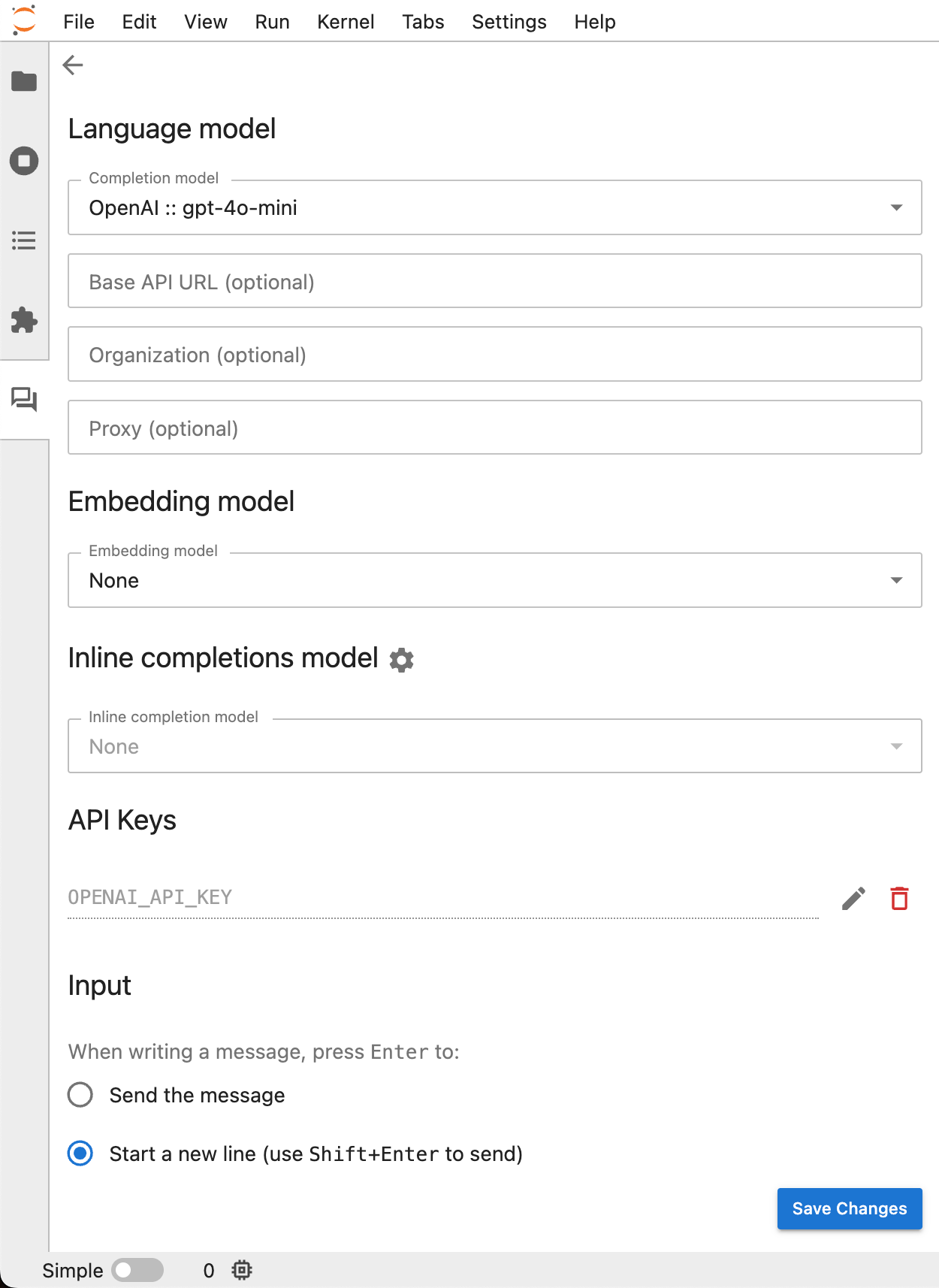
Otherwise, here’s what you’ll typically do via terminal if you want to expose your keys to your environment. For example, here is what that would look like when using OpenAI’s LLMs:
export OPENAI_API_KEY=”your_api_key_here”Here is another method in case you want to keep the key contained within the notebook in a safe way:
import getpass
import os
secret_access_key = getpass.getpass(’Enter your OPENAI Key: ‘)

# Set the environment variable without displaying the full key
os.environ[’OPENAI_API_KEY’] = secret_access_key
3. Using Jupyternaut
If you installed the full extension, you’ll see a chat panel in JupyterLab.
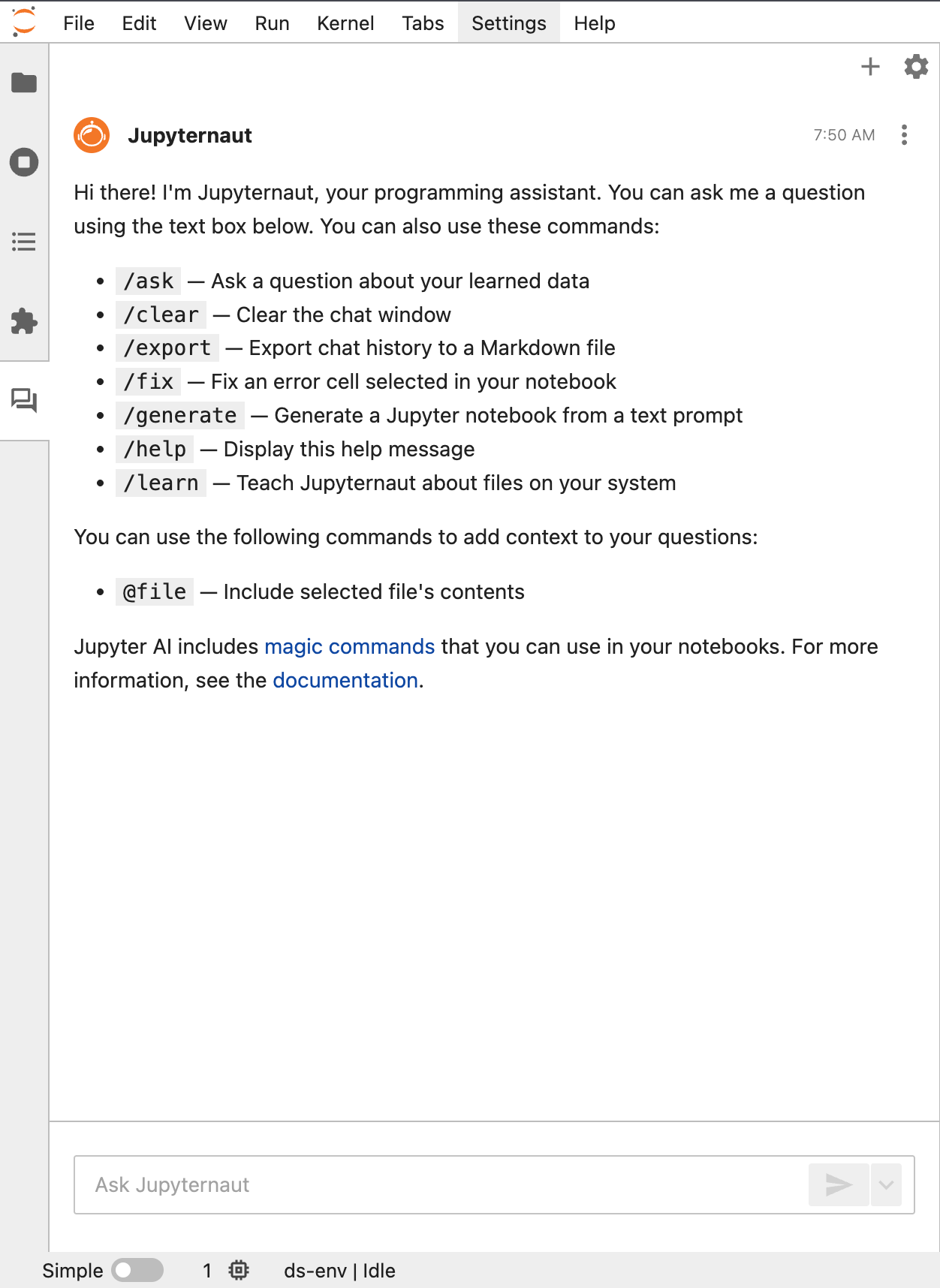
You can ask it to:
Explain what a code cell does
Write new functions for you
Debug a piece of code that throws an error
Summarise large outputs or notebook sections
Here is a quick example:
4. Use the Magic Command %%ai
Want help inside a notebook cell directly? Use the magic command. It works in JupyterLab, Notebook, VS Code, and other IPython environments
This is what you do, specifying your model of choice, in this case, ChatGPT:
%%ai chatgpt
Explain poisson distributions
If you are asking for code and want to ensure it is directly executable:
%%ai chatgpt --format code
Write a pandas query that filters customers who signed up in the last 30 days and returns their average spend.
Here is a quick example:
5. My Take
I’ve tried a handful of AI coding assistants, and the reason Jupyter AI stands out is that it integrates directly where most data scientists actually work.
But I still think the features are too basic, and the integration needs more work to make it truly valuable.
For example, something extremely useful would be if Jupyternaut could actually scan your notebook and help you make changes or explain parts of it without requiring you to copy and paste context within every prompt:
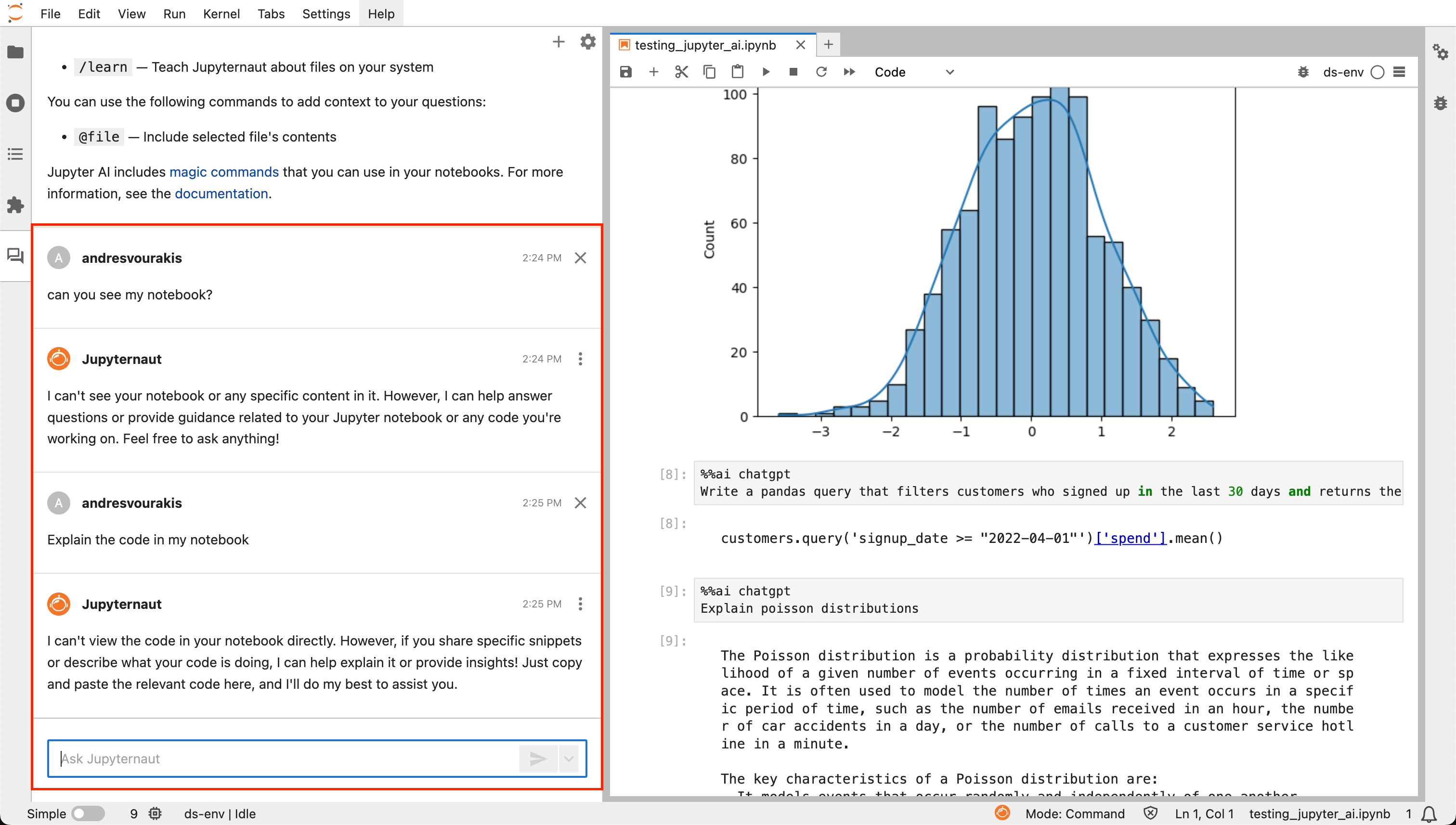
Nevertheless, if you live in notebooks and want an AI coding companion, this is definitely worth trying.
A couple of other great resources:
🚀 Ready to take the next step? Build real AI workflows and sharpen the skills that keep data scientists ahead.
💼 Job searching? Applio helps your resume stand out and land more interviews.
🤖 Struggling to keep up with AI/ML? Neural Pulse is a 5-minute, human-curated newsletter delivering the best in AI, ML, and data science.
Thank you for reading! I hope this guide helps you streamline your analysis workflow.
- Andres Vourakis
Before you go, please hit the like ❤️ button at the bottom of this email to help support me. It truly makes a difference!